
Retro Claim a Flight
For clients in the airline industry, the Member Profile screen allows Customer Service Representatives to retroactively associate an anonymous Flight with a Member. This process is referred to as a "retro claim," and allows the Member to correctly receive any Metrics or Miles that they should have earned from that Flight.
When a Flight is retro claimed in this manner, the Flight information is validated and enters into an approval workflow where it must be reviewed and approved on the Flights Approval screen. Once the Flight information is approved, the platform creates the Flight Activity record associated with the selected Member.
Note: This feature is used to associate an existing Flight (with no known Member) with a Member. If you instead need to create a brand new Flight Activity, please see Add Flight Activity.
To retroactively claim a Flight Activity for a Member:
-
Select Members from the top navigation bar, then select CSR > People from the side navigation menu. The People screen is displayed.
-
On the People screen, search for and select the desired Member (see
-
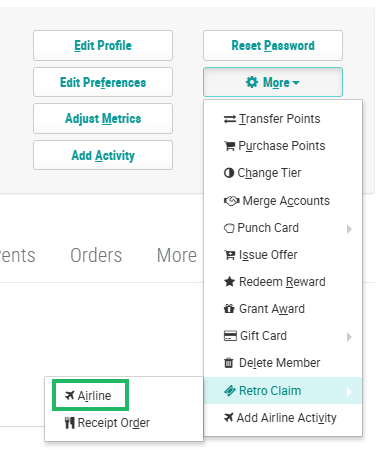
Within the header section of the screen, click More > Retro Claim > Airline. The Retro Claim Wizard pop-up window is displayed.
-
In the Ticket Number field, enter the Flight's ticket number.
Note: Currently, Ticket Number is the only supported search criteria.
-
Click the Search icon. The platform searches for a Flight with this ticket number. If the platform was unable to find a matching Flight, a red X icon is displayed. Check that you entered the Ticket Number correctly and retry the search. If the platform was able to find a matching Flight, a green check mark is displayed.
-
Click Verify. The platform attempts to validate the claim based on the First Name / Last Name associated with the Flight.
-
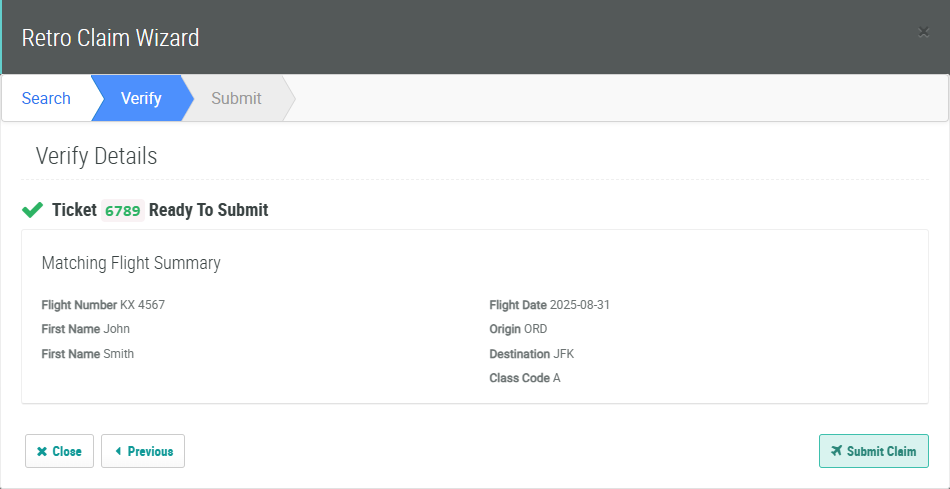
If the name on the Flight matches the name of the selected Member, a success message is displayed. Click Submit Claim.
-
-
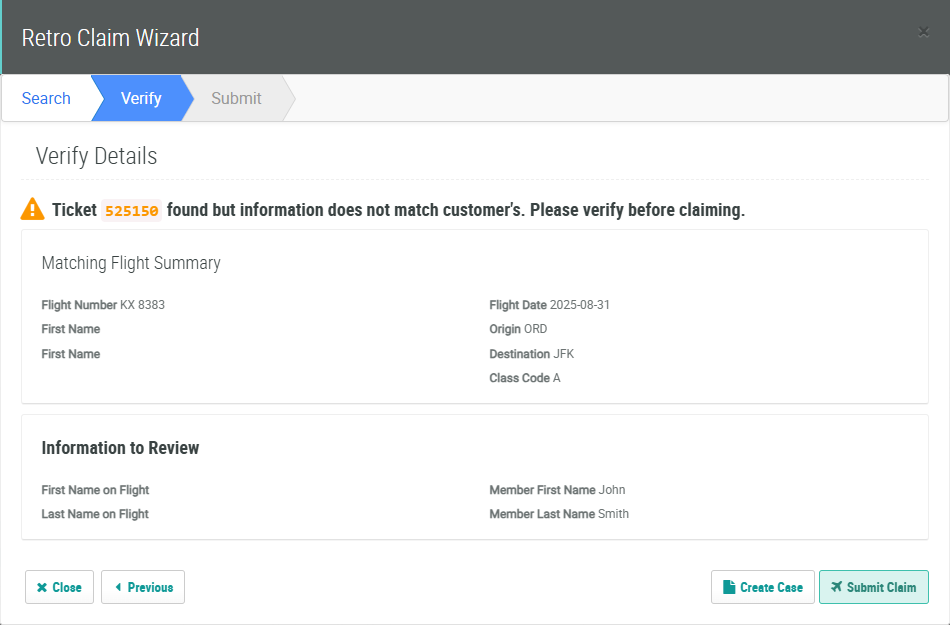
If the name on the Flight is missing, or does not match the name of the selected Member, a warning message is displayed. Verify that you selected the correct Flight. If not, click Previous to search for a different Ticket Number. If the Flight is correct, click Submit Claim.
The Flight information is validated, and will appear on the Flights Approval screen for review and approval. Once the Flight is approved, it will get added to the Member's Profile as a Flight Activity, and can be viewed on the Activities tab and the Flights tab.
